💻 How to Enter BIOS Directly from Command Prompt (No Function Key Needed)
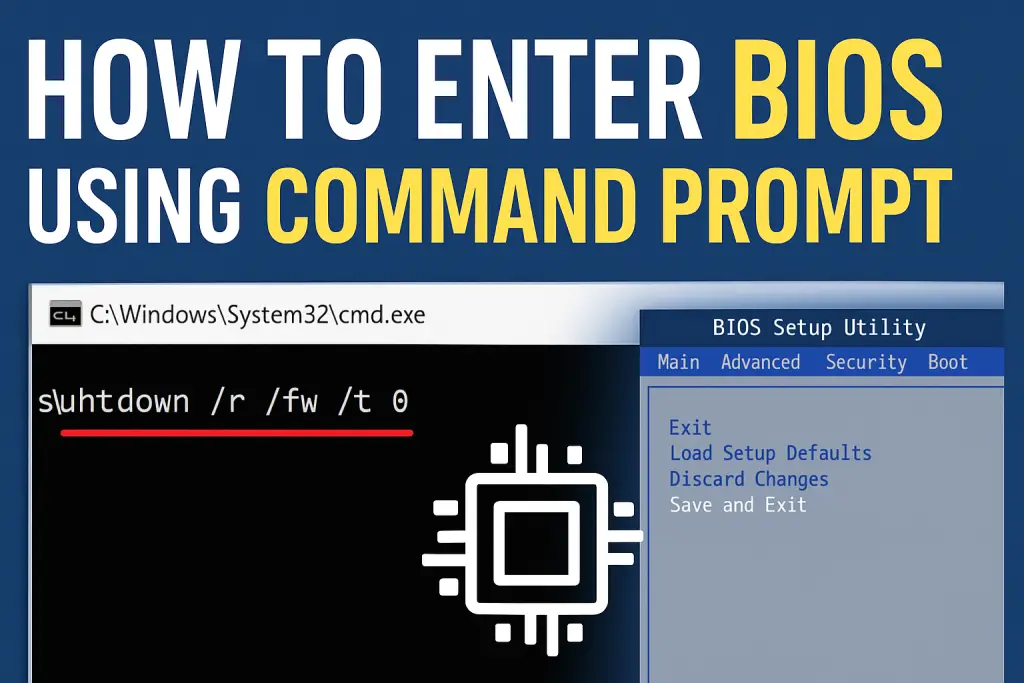
Sometimes entering the BIOS can be tricky — you have to press the right key (like F2, DEL, or ESC) at just the right time during startup. Miss the timing, and you’re back in Windows again.
But don’t worry — there’s a simple Command Prompt method to restart your PC directly into BIOS, without guessing any keys.
🪟 Steps to Enter BIOS Using Command Prompt
- Open Command Prompt as Administrator
- Click on the Windows Search bar, type cmd.
- Right-click on Command Prompt → choose “Run as administrator.”
- Click Yes on the permission prompt.
- Type the following command carefully:
shutdown /r /fw /t 0Then hit Enter.
⚙️ What this Command Means
| Part | Function |
|---|---|
shutdown | Starts the shutdown or restart process |
/r | Restarts the computer (instead of shutting down completely) |
/fw | Forces the system to boot into firmware (BIOS/UEFI) on the next restart |
/t 0 | Sets the timer to 0 seconds, so restart happens immediately |
🔁 What Happens Next
- Your PC will automatically restart.
- Instead of booting into Windows, it will open the BIOS/UEFI settings screen directly.
- From here, you can make any necessary changes — like enabling virtualization, secure boot, boot order, etc.
Once done:
- Press F10 → select Save and Exit → confirm with Yes.
✅ That’s It!
You’ve successfully entered your BIOS without pressing any special key at startup.
About The Author